
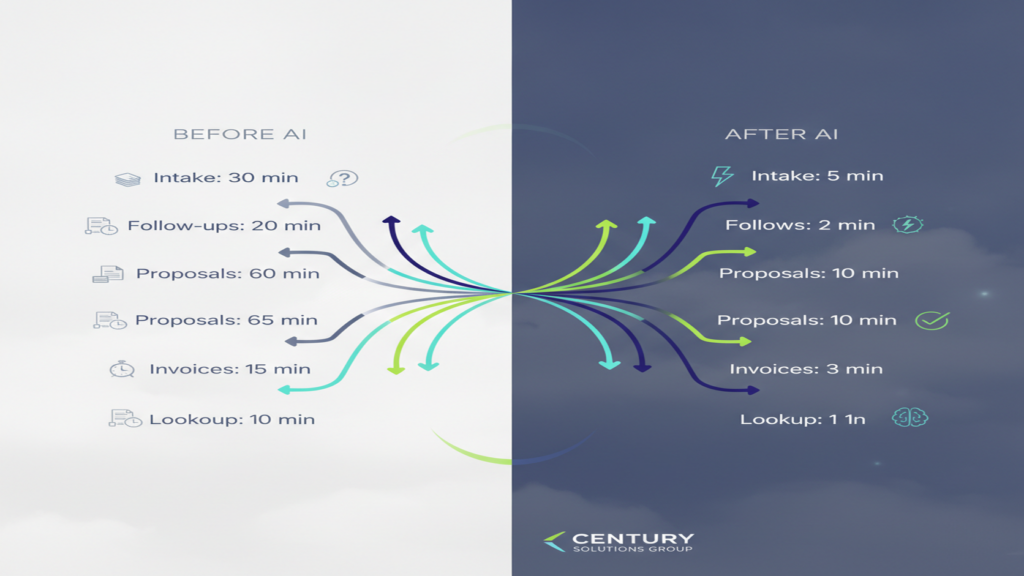
AI for the Front Office: Five Workflows That Save Hours This Quarter
The fastest return on AI for a 25-to-300-person business isn’t a moonshot project — it’s the front office, where the same handful of tasks repeat every day and each one eats fifteen minutes. This article walks through five specific workflows, what the before-and-after actually looks like, roughly how much time each one gives back, and when you should leave the task to a human.
A note before the list: every workflow below assumes you’re using a business-tier AI tool tied to your company identity, such as Microsoft 365 Copilot inside your existing tenant, rather than a free public chatbot. That distinction matters more than any prompt-writing trick, and we’ll come back to it at the end.
Workflow 1: New Client and Project Intake
Before. A prospect fills out a web form or leaves a voicemail. Someone at the front desk retypes the details into your CRM or practice management system, guesses at which service line it belongs to, and emails a partner or project manager to ask who should own it. Average handling time across the industries we serve tends to land somewhere between 12 and 20 minutes per intake, more if the information arrives in a messy email thread.
After. The inbound email or form submission goes to a shared mailbox. Copilot (or a Power Automate flow with an AI step) reads the message, extracts name, company, contact details, described need, and urgency into a structured summary, then drafts a routing recommendation and an acknowledgment reply. A human reviews the summary, corrects anything off, and clicks send.
Realistic time saved. Four to eight minutes per intake. At 40 intakes a month, that’s roughly three to five hours back — modest on its own, meaningful when stacked with the others.
When not to use it. Don’t let AI auto-send the acknowledgment for regulated or high-stakes intake. A medical or dental practice fielding a symptom description, or a law firm receiving what could be a conflict-of-interest situation, needs a human in the loop before anything goes back out the door. The summary is the product; the send button stays manual.
Workflow 2: Scheduling and Appointment Follow-Ups
Before. Someone works a list. Confirm tomorrow’s appointments, chase the three people who never replied, reschedule the two cancellations, update the calendar, and note it all in the system. For a dental practice with a full chair schedule or a construction firm coordinating subcontractor site visits, this is easily 45 to 90 minutes a day of low-judgment work.
After. AI drafts the individualized follow-up messages in bulk from a list — pulling in name, appointment type, time, location, and any prep instructions — so the coordinator is reviewing and approving instead of composing. Meeting intelligence features also handle the back half: after a client call, Copilot produces a recap with agreed next steps and proposed dates, which becomes the follow-up email instead of someone reconstructing it from memory.
Realistic time saved. Two to five hours a week for a practice or office with heavy scheduling volume. The bigger win is often quality, not speed — follow-ups that used to slip on busy days now go out consistently.
When not to use it. Anything with clinical prep instructions, medication guidance, or legal deadlines needs a human to verify the specifics. AI is drafting the wrapper, not authoring the instruction.
Workflow 3: Proposal and Document Drafting
Before. A partner or estimator opens the last similar proposal, saves a copy, and spends 90 minutes to three hours swapping in the new scope, pricing, and client language — while trying to remember which version of the boilerplate is current.
After. Copilot drafts a first pass from a structured prompt plus your approved template and reference documents stored in SharePoint. For a manufacturing quote or a professional services engagement letter, that first pass typically covers scope narrative, assumptions, and standard terms. The human expert then does the work only they can do: pricing judgment, risk carve-outs, and the relationship-specific language.
Realistic time saved. 30 to 60 percent of drafting time on routine proposals. A firm producing 15 proposals a month can reasonably expect to reclaim eight to fifteen hours.
When not to use it. Never for final legal language, and never for anything that leaves your office without a subject-matter review. AI drafting does not substitute for legal, financial, or clinical judgment, and it will produce confident text that is subtly wrong about your contract terms if you let it. Lock your approved clause library down and require that AI-generated drafts reference it rather than invent from scratch.
Workflow 4: Invoice Chasing and AR Follow-Up
Before. Accounts receivable pulls an aging report, decides who to contact, and writes each note individually — or, more commonly, writes three of them and runs out of day. Slow AR is one of the quietest profit leaks in construction and professional services.
After. AI generates tiered, tone-appropriate follow-up drafts directly from the aging report: friendly at 15 days, firmer at 45, escalation-ready at 75, with the invoice number, amount, and date pulled in accurately. The controller reviews the batch, adjusts anything relationship-sensitive, and sends.
Realistic time saved. Two to four hours a week for a firm with meaningful AR volume — plus the harder-to-measure benefit of consistent collection cadence.
When not to use it. Don’t automate the escalation tier. Once a conversation moves toward collections or legal action, a human owns every word.
Workflow 5: Internal Knowledge Lookup
Before. “Which version of the safety manual is current?” “What’s our PTO carryover rule?” “Did we already send that client a W-9?” Someone interrupts someone else. Across a 100-person company, these micro-interruptions are the single largest hidden time cost in the front office.
After. Copilot searches across your SharePoint, Teams, and email content and returns a cited answer. The citation matters: staff can click through and verify the source document rather than trusting the summary blind.
Realistic time saved. This is the hardest to quantify honestly, but a reasonable expectation is 20 to 40 minutes per employee per week once adoption settles — and it only works if your document environment is organized. If your files are scattered across personal OneDrives and a decade-old file server, AI will surface stale or wrong answers with total confidence. Fix the data first.
The Groundwork That Makes These Safe
Every workflow above touches client data. Before you roll them out, three things need to exist.
An AI policy your staff has actually read. Two pages is enough: which tools are approved, what categories of data may never be pasted into a public tool, and who to ask when someone isn’t sure. Without one, people default to free consumer chatbots on their phones, and you have shadow AI you can’t see.
Clarity on what public AI tools do with pasted data. Consumer-tier tools may retain inputs and use them for model improvement. Business-tier tools operating inside your Microsoft 365 tenant generally do not train on your data and inherit your existing permissions. For a practice under HIPAA, a firm protecting attorney-client privilege, or a manufacturer facing CMMC requirements, that difference is the whole ballgame. This is core AI security and data privacy territory, not an IT nicety.
Permissions that reflect reality. Copilot respects your existing access controls — which means if your accounting folder is open to all staff, Copilot will happily surface payroll figures to anyone who asks. A permissions review before rollout prevents an embarrassing discovery after.
Start With One Workflow
Pick the single workflow where your team loses the most time, run it for 30 days with a named owner, and measure. That’s a realistic quarter. Trying all five at once is how AI pilots quietly die.
Century Solutions Group has helped Atlanta-area firms in construction, healthcare, legal, and manufacturing put these workflows in place with the policy and permission groundwork underneath them. If you’d like a straightforward read on where AI fits in your front office and what has to be tightened first, schedule a short discovery call. We’ll look at your current Microsoft 365 setup, identify one or two workflows worth piloting this quarter, and tell you plainly if the answer is “not yet.”